A duplicate finder scans your Mac and offers a number: 40 GB of duplicates, ready to remove. You delete them, open About This Mac, and free space has moved by 2 GB.
Nothing failed. The files were duplicates. The estimate was still wrong, because on APFS two files can hold the same bytes without holding the same amount of storage.
The short version: a duplicate scanner measures file sizes. Free space depends on blocks. On APFS those two numbers stop matching as soon as clones or hard links are involved.
Quick answer
- A clone is a separate file that shares its blocks with the original, so deleting one side frees only what has diverged.
- A hard link is a second name for one inode, so deleting one name frees nothing at all.
lsand Finder report the full size for every name, which is exactly what a size-based scanner adds up.ls -liexposes hard links through the link count; clones are invisible to standard tools.- The honest measurement is free space before and after the delete, taken with
df -h /System/Volumes/Data. - Time Machine local snapshots can hold the blocks of files you already deleted, so the space returns later rather than immediately.
What a duplicate scanner actually measures
Every duplicate finder works in two stages. It groups files that could match, usually by size, then it confirms the match by reading content or comparing hashes. Both stages care about the bytes inside the file.
Storage works one level down. A file name points at an inode, an inode points at blocks, and the free space counter tracks blocks. The moment two names share the same blocks, the sum of file sizes stops describing the disk.
Three arrangements that look identical to a scanner
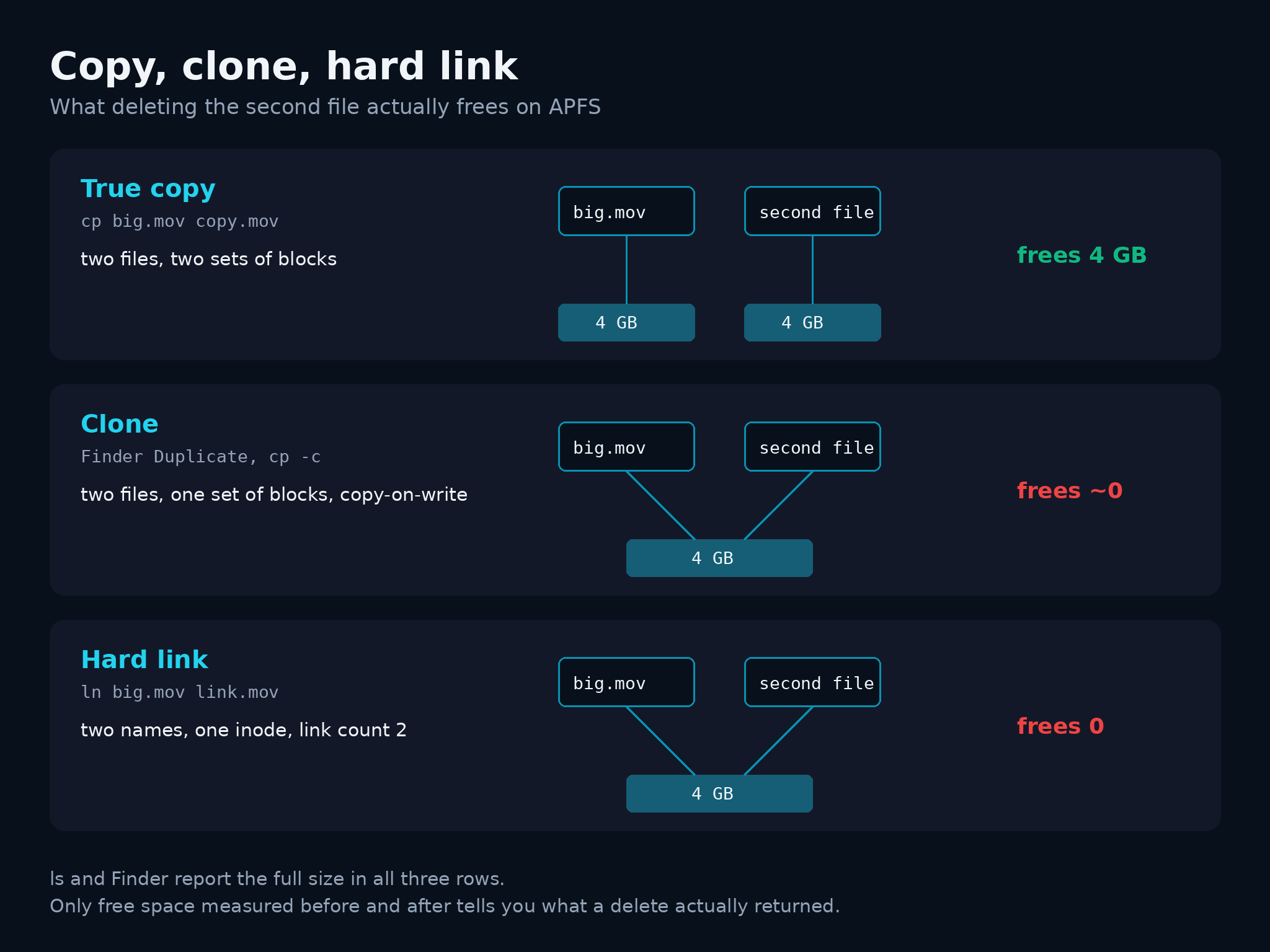
A true copy. Two files, two inodes, two sets of blocks. Delete either one and the disk gives back the full size. This is what everyone assumes they are looking at.
A clone. APFS creates clones when you press Duplicate in Finder, when you run cp -c, and when an app calls clonefile. The clone is a real file with its own inode, but its data pointers reference the original blocks. Writes on either side are copy-on-write: changed blocks get written separately, untouched blocks stay shared. A clone that has never been edited costs almost nothing, and deleting it returns almost nothing.
A hard link. One inode with two directory entries. There is no second file at all, only a second name. Removing one name decrements the link count and leaves the data in place. The disk gives back space when the last name goes.
A content-based scanner sees the same bytes in all three cases. Unless it checks the file system layer, it reports the same saving for all three.
Why the estimate leans high
The reporting layer is the problem, and it is older than APFS. Finder shows the full size for a clone and for each hard link, and so does ls -l. Neither of them tells you that the storage is shared. A scanner that adds up file sizes inherits that error directly, and the more your workflow leans on Finder duplicates and clone-aware copies, the larger the gap gets.
du behaves better in one specific way. Within a single run it counts an inode once, so a folder full of hard links reports a realistic total. Clones still get counted twice, because clones are separate inodes.
The result is an estimate that can be wrong by an order of magnitude on a Mac that holds video projects, exported renders, or virtual machine images, which are exactly the files people clone instead of copying.
Check it before you trust it
Find hard links. The second column of ls -li is the link count.
ls -li ~/Movies/big.mov
# 12345678 -rw-r--r--  2 chama  staff  4294967296 Aug 18 09:12 big.mov
#                      ^ link count 2: another name points at the same data
Anything above 1 means deleting this name frees nothing until the other names go too.
Measure the real saving. Take free space before and after, on the data volume.
df -h /System/Volumes/Data      # before
# delete the duplicates
df -h /System/Volumes/Data      # after
The difference is the only number that describes your disk. Everything printed before the delete is a prediction.
Expect clones to stay invisible. There is no supported command that answers “is this file a clone” on a stock macOS system. That is precisely why a savings estimate deserves a confidence level instead of a confident total.
Deleted, and the space still has not returned
Two mechanisms delay the result even when the duplicates were real.
Time Machine keeps local snapshots on the startup disk, and a snapshot holds the blocks of files that existed when it was taken. Delete a 20 GB duplicate and those blocks stay allocated to the snapshot until it ages out. macOS reports that as purgeable space and reclaims it automatically when the disk gets tight. List what exists with:
tmutil listlocalsnapshots /The Trash is the simpler case, and it catches people more often. Files in the Trash still occupy blocks. Empty it, then measure.
What an honest duplicate report looks like
StorageRadar treats the estimate as a claim that has to survive review, so the workflow is built around three rules.
Confirm the match byte for byte. Candidates are grouped by size, screened with a partial SHA-256 over three chunks, and only then compared with a full SHA-256. Inode, device, and size get re-validated before any action, so a file that changed during the scan cannot be removed on stale evidence.
Attach uncertainty to the number. The estimated physical saving is nullable, carries a confidence value, and lists the reasons it could be lower, including APFS clones and hard links. A duplicate group that shares blocks is reported as a group that will free less than it looks.
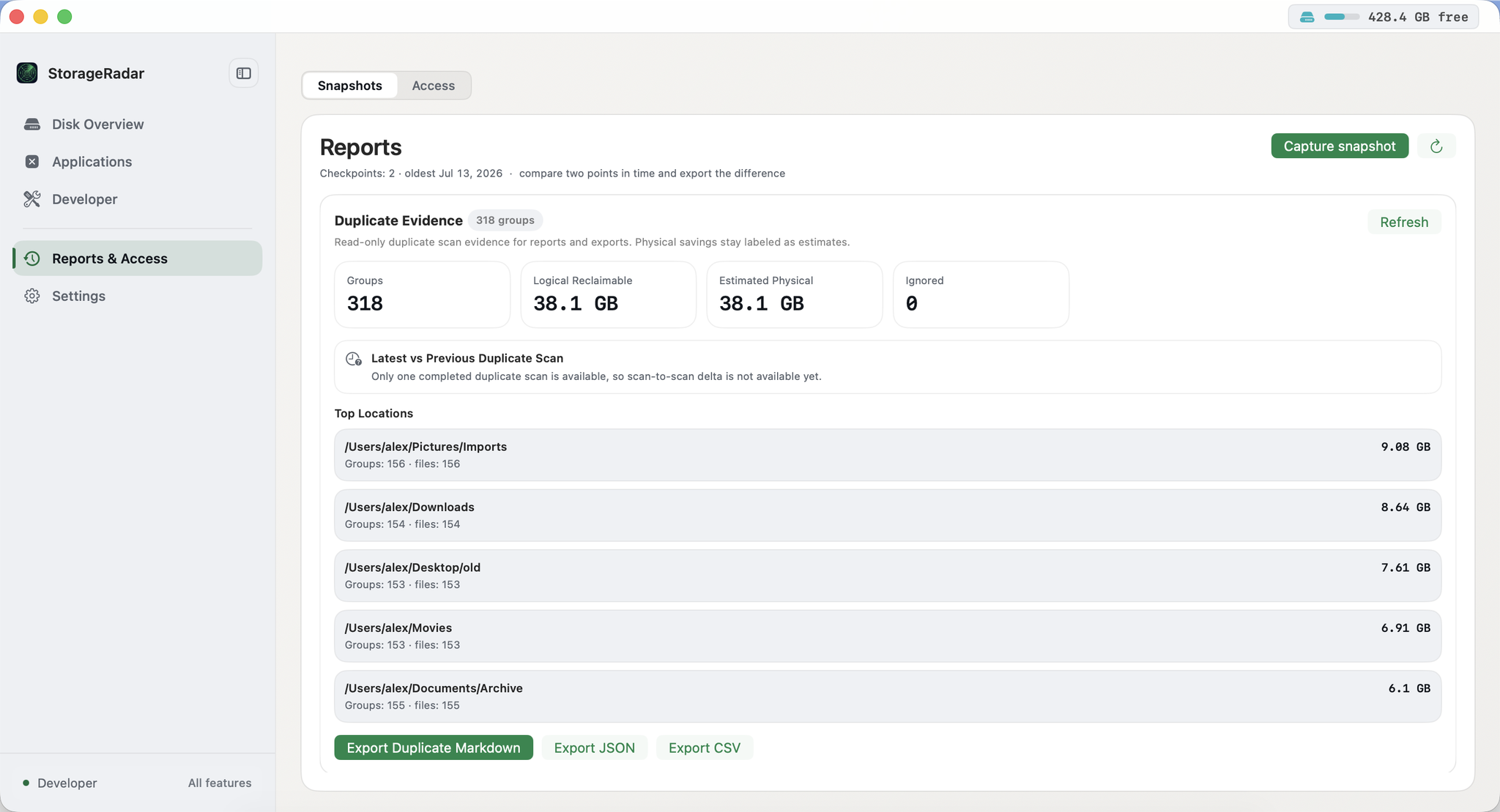
Never leave a group without a keeper. The apply step blocks if your selection would remove every copy, and removals run through dry-run and preflight before anything moves, with Trash and a short undo window as the default.
Cloud-only files stay untouched too. A dataless file is not downloaded to be hashed unless you allow it, because materializing 200 GB of iCloud archives to compare them is not a cleanup.
Where real duplicates come from
Clone-aware tools quietly reduce the amount of genuine waste on a modern Mac, so it helps to look where duplicates still appear as full copies:
- Downloads that arrived twice under
file.zipandfile (1).zip. - Exports and renders written next to the project, then copied to a delivery folder.
- Camera and phone imports that ran twice into different libraries.
- Project folders copied to a backup directory on the same disk, which is a copy, not a backup.
- Archives unpacked twice into different destinations.
Those are ordinary copies with their own blocks, and removing the extra one returns the full size.
The order that works
- Scan and let the tool confirm duplicates by content, not by name or size.
- Read the savings estimate as a range, and check whether the tool admits shared storage.
- Record free space with
df -h /System/Volumes/Data. - Delete through Trash, keep one copy per group, and empty the Trash.
- Measure again, and treat the difference as the truth.
If the second measurement disappoints you, the files were shared storage, not waste. Nothing was lost, and the disk was already smaller than the report suggested.
Frequently asked questions
Why did deleting duplicates free almost no space on my Mac?
The copies were probably clones or hard links. On APFS two files can share the same storage blocks, so removing one of them releases only the blocks that differ. The scanner counted the full size of both files because that is what the file system reports for each name.
What is an APFS clone file?
A clone is a separate file with its own inode that points at the same data as the original. Writes to either side are copy-on-write, so the pair costs one copy of storage until the contents diverge. Finder's Duplicate command and cp -c create clones.
How is a hard link different from a clone?
A hard link is another name for the same inode, so there is one file object with two directory entries. Deleting one name never frees storage while another name still points at it. ls -li shows the link count, and anything above 1 means other names exist.
Does APFS deduplicate my files automatically?
No. APFS shares blocks only when a clone is created explicitly, by Finder, by cp -c, or by an app that calls clonefile. Two files that happen to hold identical bytes still occupy two copies of storage.
How do I measure how much space a cleanup actually freed?
Record free space before and after the delete with df -h /System/Volumes/Data and compare. The estimate printed by any duplicate finder is a prediction, and on APFS the prediction can be wrong in both directions.
Why did free space not return even after deleting real duplicates?
Time Machine local snapshots keep the blocks of deleted files until they are thinned, so the space shows up as purgeable rather than free. List them with tmutil listlocalsnapshots / and wait for automatic thinning or free space explicitly.